
On this page
Colors
In Boze, you define colors in the Colors module, or using the colors command; then, you can choose colors you defined in color options. This is unlike most other clients, where you directly edit colors in color options.
To edit colors, click on the Colors module under Client.
Color Types
There are 3 types of colors:
| Type | Description |
|---|---|
| Static | Just a basic RGB color |
| Changing | Changes between static colors over time |
| Gradient | Shows a gradient of static colors, can move over time |
Changing
Changing colors have the following options:
| Option | Description |
|---|---|
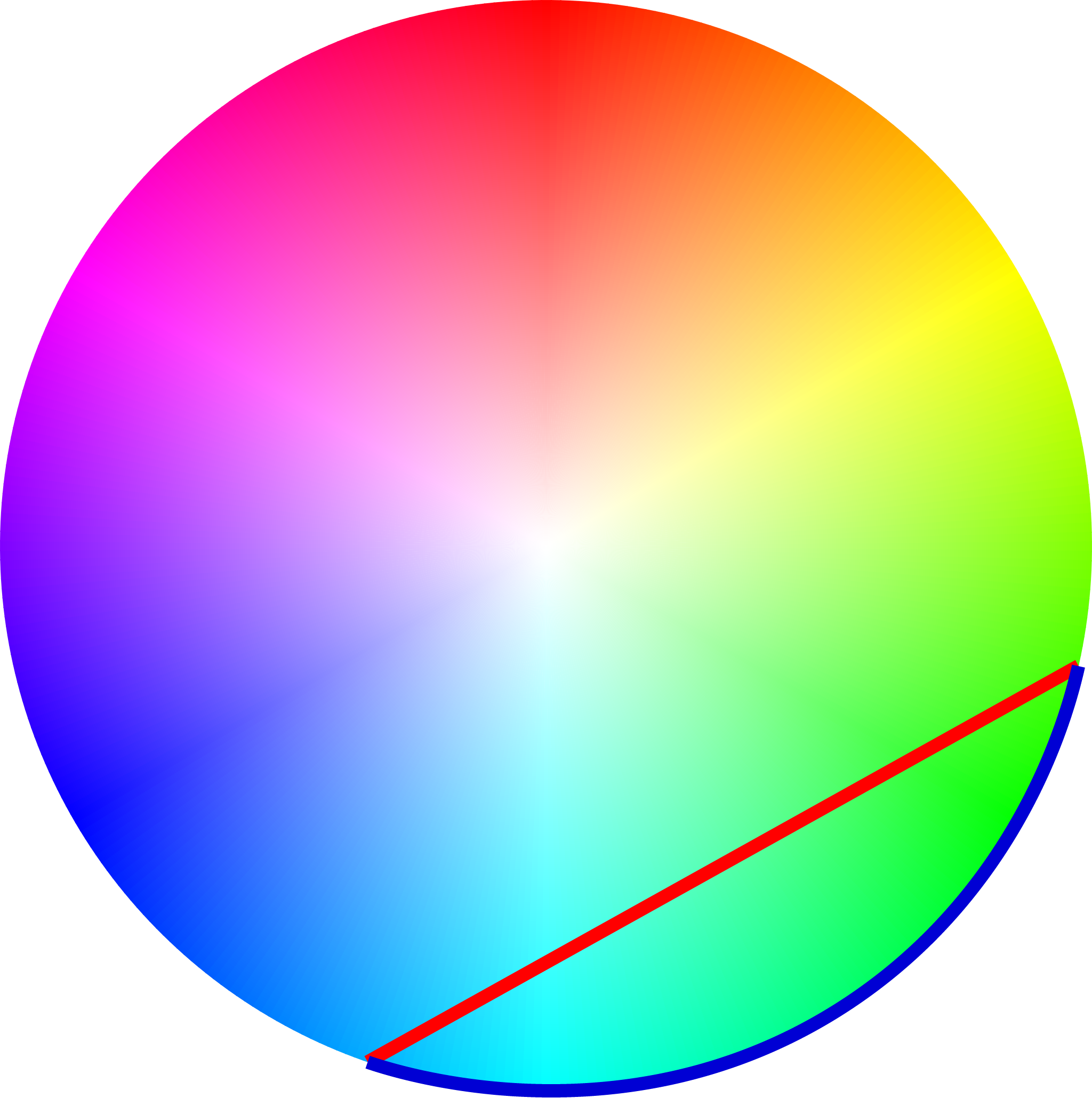
| HSB | Interpolate between colors via HSB circle, not directly (see image below) |
| Mirror | When you have more than 2 static colors, instead of going from the last one back to the first, go back through them in reverse order |
| Speed | Speed with which the color changes |
Some features, such as AutoMine, have a "SyncProgress" option when you have a changing color selected. This makes the color change proportional to the mining/etc. progress, rather than time.
Here, the red line shows RGB interpolation, and the blue line shows HSB interpolation:
Gradient
Gradient colors have the following options:
| Option | Description |
|---|---|
| HSB | Same as with changing colors |
| Mirror | Same as with changing colors |
| Angle | Gradient angle, like unit circle, not heading |
| Spin | How fast the gradient angle spins/rotates |
| Scale | Gradient scale; 1.0 = full screen width/height |
| Motion | How fast the gradient moves across your screen; 0 = don't move |
Commands
Editing colors
These are the 5 commands:
| Command | Syntax |
|---|---|
| List colors | colors list |
| Delete color | colors delete <color name> |
| Add static color | colors add static <color name> <red (0-255)> <green (0-255)> <blue (0-255)> |
| Add changing color | colors add changing <color name> <hsb (true/false)> <mirror (true/false)> <speed ((-3)-3)> <red 1 (0-255)> <green 1 (0-255)> <blue 1 (0-255)> <red 2 (0-255)> <green 2 (0-255)> <blue 2 (0-255)> ... |
| Add gradient color | colors add gradient <color name> <hsb (true/false)> <mirror (true/false)> <angle (0-1)> <spin ((-1)-1)> <scale (0.05-10)> <motion ((-10)-10)> <red 1 (0-255)> <green 1 (0-255)> <blue 1 (0-255)> <red 2 (0-255)> <green 2 (0-255)> <blue 2 (0-255)> ... |
Hex codes
Anywhere the add commands take RGB triples, you can pass hex codes instead - with or without the leading #. Mix is not allowed; pick one format per command. Examples:
.colors add static red #FF0000
.colors add static red FF0000
.colors add static red 255 0 0

.colors add changing rainbow true false 1.5 #FF0000 #00FF00 #0000FF
Choosing colors
You can click on the color option in the GUI, or you can use the set command, just like for any other option: set <module> <option> <color name>.
Spin
Spin is intentionally hidden from GUI, as it makes it hard to match up different gradients. If you wish to use it, use the command to create the gradient color.